Shopify guide
From Shopify product page to printed magnet.
Link a magnet product to Vixie, and customers upload their own photos when they order. Each paid order lands in Vixie with print-ready files. You print it, then ship it from Shopify the way you always do.
Last updated October 2026 · New to Vixie on Shopify? Start with the install guide
Prefer to watch?
Product, order, and print in under 3 minutes.
Part 1
Link a product to Vixie.
The Magnet Customizer shows on Shopify products that are linked to Vixie. Already selling magnets on Shopify? Select Import from Shopify on the Products page, and pick a kind for each product, like Photo Magnets. For a new product, create it in Vixie and let Vixie make it on Shopify:
- 1
Select New Product, and pick Custom Photo
Open Products in the Vixie menu. Custom Photo is the type for photo magnets.
- 2
Set it up like any Vixie product
Give it a name and add a photo of the finished magnets for your store. Your packs and prices start filled in, a Single, a 3-Pack, and a 6-Pack. Then pick the magnet size you print.
- 3
Switch on Create on Shopify
It's under Shopify, on the right. Vixie makes the matching product on your store when you save. Switch on Publish it as active too, so it goes live right away. Leave it off and it's saved as a draft for you to check in Shopify first.
- 4
Select Save
Vixie shows Created a Shopify product. Your packs and sizes become the product's options on Shopify, with your prices, and the Shopify panel shows the linked product.
Keep the option names. Vixie reads your Shopify options called Pack, Grid, and Size to know what to print for each variant. Rename them and the Magnet Customizer can't tell what the customer picked.
Part 2
What your customer does.
There's no app to download and no account to make. It all happens on your product page, on a phone or a computer.
- 5
The customer selects Upload photos
The button sits with your other product options. It opens the Magnet Customizer right on your product page.
- 6
They choose a pack and add their photos
They tap a slot and pick their photos. They can pick a whole pack's worth at once, and each photo fills a slot.
- 7
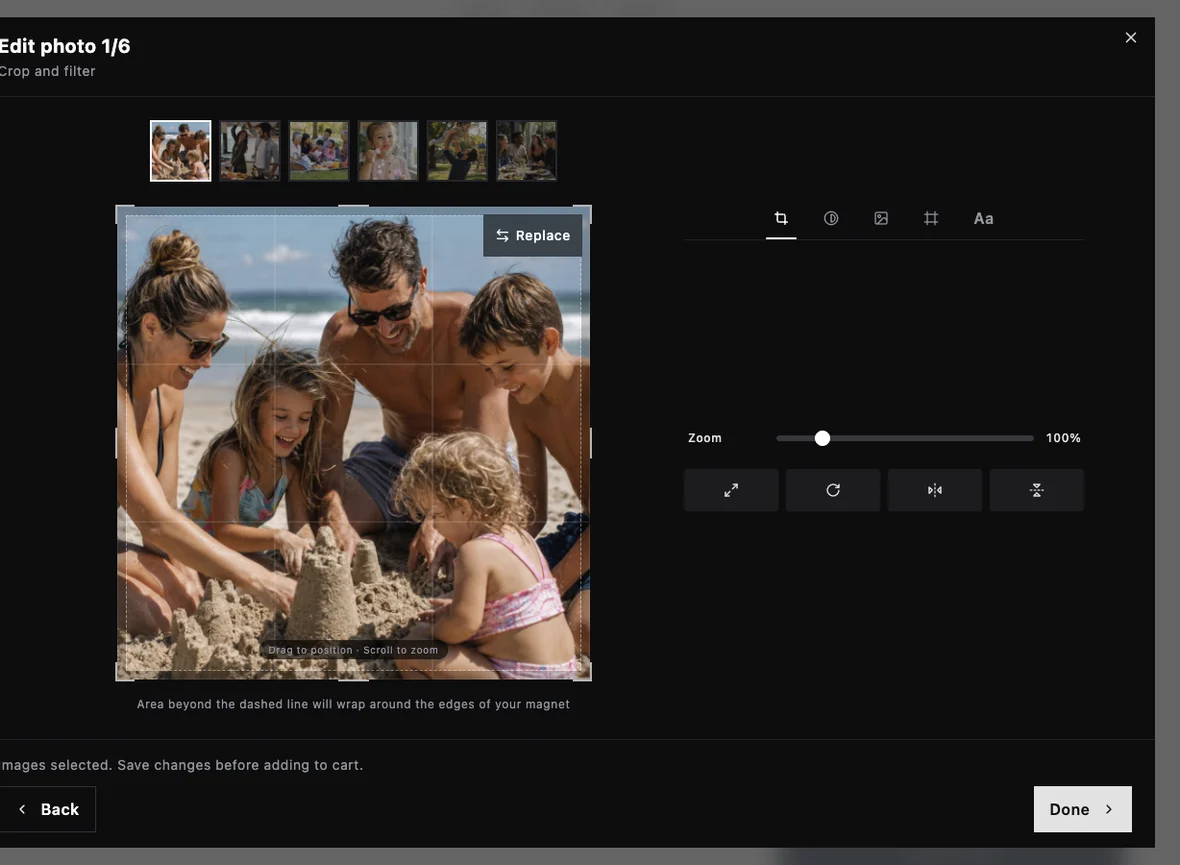
They crop each photo and pick a filter
The crop frame shows exactly what wraps around the edge of the magnet. They can add a filter or a caption too. The preview is what you'll print.
- 8
They select Add to cart, then check out
On the review screen, they check each photo one last time. Checkout is your normal Shopify checkout, with your shipping, taxes, and discounts. The photos ride along with the order.
Place a test order first. Switch on test mode for your payments in Shopify, then order a pack yourself. Five minutes as your own first customer beats finding a snag after someone's paid.
Part 3
Print it, then ship it.
- 9
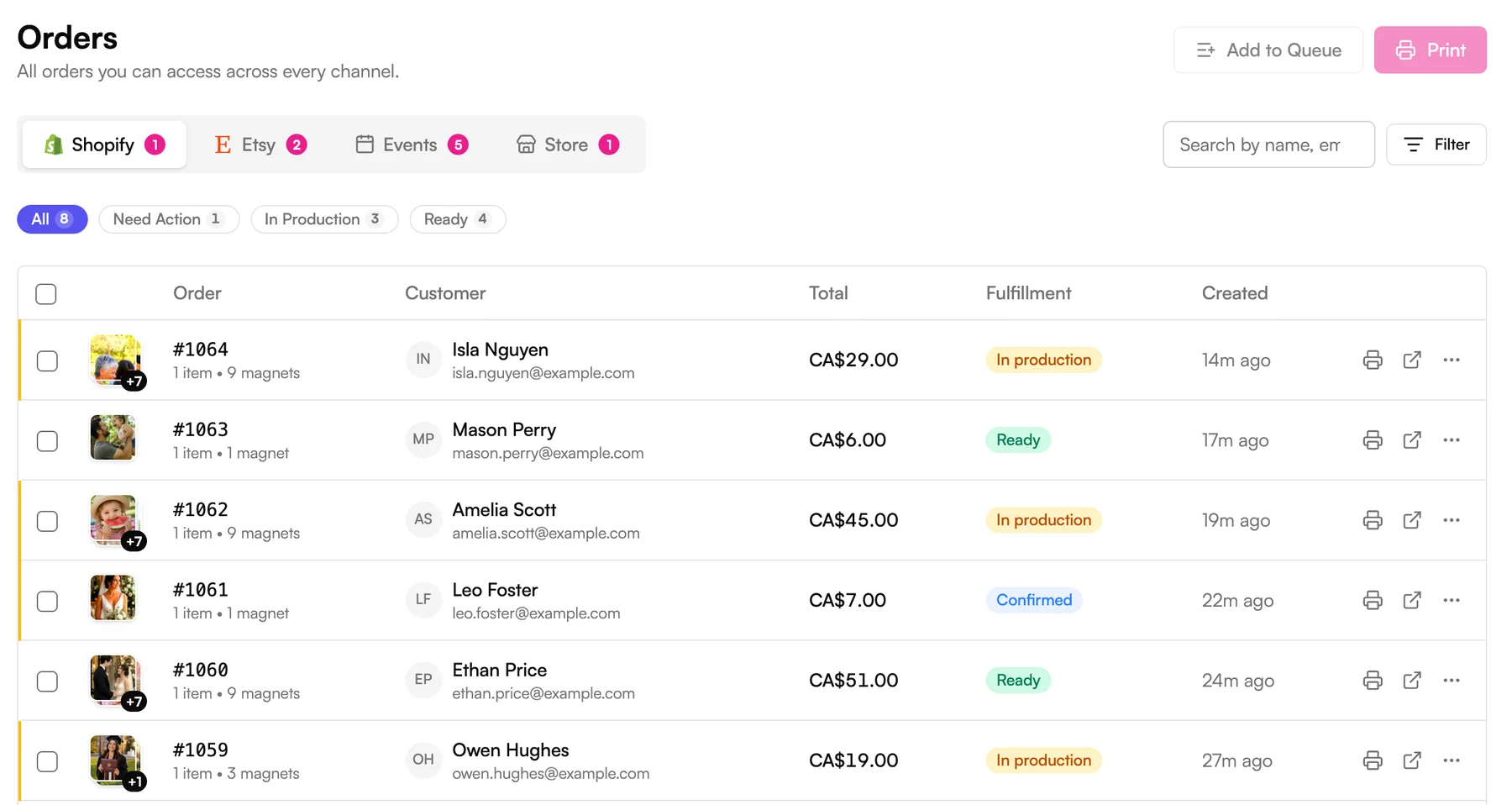
Open Orders in Vixie
Shopify orders have their own tab, with the same order number as in Shopify. Paid orders show up within seconds, with the customer's photos attached.
- 10
Open the order
You see each magnet, laid out and ready to print. Select Generate Print to print just this order, or Add to Queue to print it with everything else that's waiting.
- 11
Print the sheet, then select Mark as Printed
Shopify orders print from the same Print Queue as your events. Downloading or printing a sheet doesn't change your orders. Select Mark as Printed when it's done, and the order moves to Ready.
- 12
Ship it from Shopify
Shipping stays in Shopify. Once the magnets are pressed, fulfill the order there as you always do, with Mark as fulfilled or a shipping label.
Shopify knows where each order is up to
As an order moves through printing, Vixie adds its status to it in Shopify, as a tag and a line in the order note. Filter your Shopify orders by the tag to see what's ready to ship.
Jump straight back to Vixie
On any Shopify order or product, open More actions and select View in Vixie.
Before your first order
A quick checklist.
- Vixie App is switched on in your theme editor, and saved
- Your magnet product is linked to Vixie, and active on Shopify
- You've printed a test sheet and set your measurements for that size
- You've placed a test order and seen it land in Vixie
Questions
Shopify orders FAQ
Do Shopify orders come into Vixie on their own?+
Does Vixie fulfill or ship my orders?+
How do I see in Shopify which orders are ready?+
What if a customer forgets their photo?+
Can I print Shopify orders with my event orders?+
I already sell magnets on Shopify. Do I start over?+
I changed my prices in Vixie. How do they get to Shopify?+
What happens to my orders if I uninstall?+
Keep going
Related reads.
Install Vixie on Shopify
Install from the App Store, pick a plan, and switch on the app embed so customers can upload photos.
Read more →Selling · 8 minSelling photo magnets online
A product page that sells, three ways to get your first order, and the occasions people buy magnets for.
Read more →Size measurements · 10 minMagnet size measurements
Annotated walkthrough of every Edit Measurements field, plus a diagnostic table for the test sheet.
Read more →Ready for your first Shopify order?
Install Vixie, link a product, and let customers upload their own photos. 7-day free trial.
Or see what Vixie does on Shopify →